
How to schedule a post on X (Twitter): schedule from a desktop browser, then find and delete scheduled posts
How to schedule a post with X's built-in scheduling, with illustrations of the desktop browser screens. It also covers where your scheduled posts are and how to delete a scheduled post.
What you can do after reading
You can schedule an X post for a set date and time in a desktop browser, open the list of scheduled posts, and delete a scheduled post you no longer need.
Scope & requirements · Features checked Nov 19, 2026
Checked on November 19, 2026 in a desktop browser (x.com, Japanese interface). The account used was an X Premium account; we did not check free accounts or the mobile apps. The screens are illustrations, and English labels may differ from what you see. Names and positions may change when X updates its screens.
On this page
X lets you schedule a post for a set date and time. You set it from the post composer, and the post is sent at the time you chose.
Scheduling itself takes only a few steps. The confusing part comes afterward: a scheduled post does not appear on your timeline, so it is easy to lose track of where it went and how to cancel it. This article covers how to schedule, and also how to find and delete scheduled posts.
Schedule a post
- Open the composer from the "What's happening?" box on Home or the Post button in the left menu.
- Write your post.
- Among the icons under the text, press the one shaped like a calendar with a clock. Hovering over it shows "Schedule".
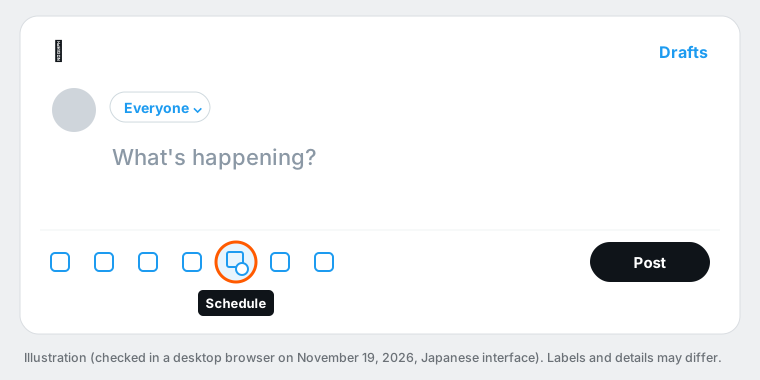
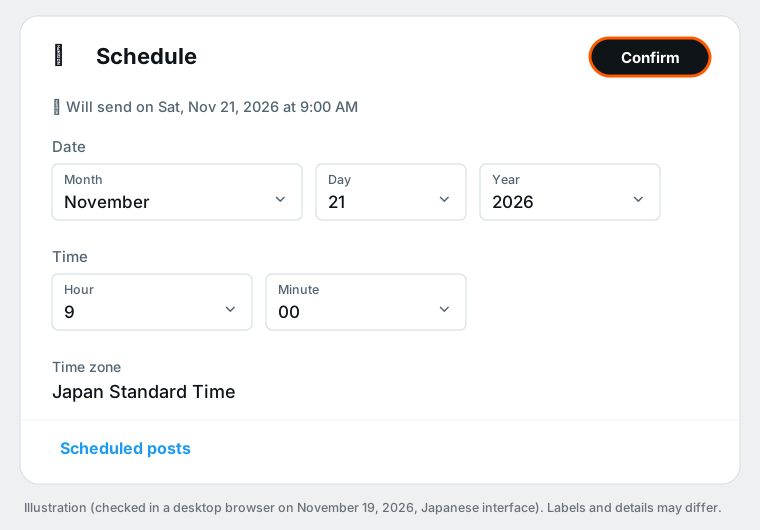
- On the schedule screen, choose the date (month, day, year) and the time (hour, minute). The top of the screen shows when it "will send", so check the date and time there.
- Press Confirm at the top right.
- Back in the composer, press the button at the bottom right to finish scheduling. A message at the bottom of the screen shows the date and time the post will be sent.
The hour is chosen in 24-hour format, so 9 PM is "21". Checking the AM/PM shown at the top of the screen helps you avoid a 12-hour mistake. The time zone was shown as Japan Standard Time in our check.
Find your scheduled posts
Scheduled posts do not appear on your Home timeline or profile. Open them in one of two ways:
- Open the composer, press Drafts at the top right, and choose the Scheduled tab
- Press the scheduled posts link at the bottom of the schedule screen
The Scheduled tab lists each scheduled post with its text and the time it will be sent. The tab next to it holds unsent drafts that are not scheduled.
Delete a scheduled post
- In the Scheduled tab, press Edit at the top right (it changes to Done).
- Tick the scheduled post you want to remove.
- Press Delete at the bottom.
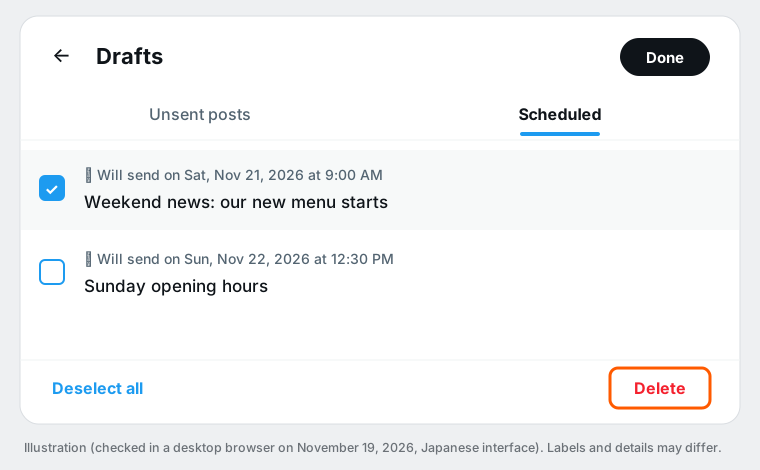
To clear your selection, press the deselect option at the bottom.
Check before you schedule
- Account: if you switch between several accounts, which one you have the composer open in
- Date and time: the date, day of the week and AM/PM in the "will send" line
- Text and attachments: whether images, video and links are included
- Volume: if you schedule many posts, list what goes out when first so you notice overlaps and gaps
Questions
Where can I see my scheduled posts? Open the composer, press Drafts at the top right, then the Scheduled tab. They do not appear on your timeline or profile until they are sent.
How do I cancel a scheduled post? In the Scheduled tab, press Edit, select the post and press Delete.
What time is it sent? At the date and time chosen on the schedule screen, in the time zone shown there (Japan Standard Time in our check).
Can I schedule from the mobile app? This article only covers the steps we checked in a desktop browser. We did not check the mobile apps.
Scheduling many posts, or deciding the next post from the numbers
X schedules one post at a time. If you want to schedule a week at once, see your plans on a calendar, or check how posts did before writing the next one, a tool that handles scheduling and analytics in one place can help. See scheduling in Ritomira for the steps and X scheduling for what it does.
What we checked
- On November 19, 2026, we checked scheduling, the Scheduled list and deleting in a desktop browser (x.com, Japanese interface).
- The account was an X Premium account. We did not check whether free accounts show the same screens.
- We did not check how far ahead you can schedule, how to change a scheduled post afterward, or the mobile app steps.
- The images are illustrations based on the screens we checked. English labels may differ, and names and positions may change when X updates its screens. X's official help is at the X Help Center.