
Prepare images for X posts: attachments, previews and ALT in Ritomira
Check image formats, file size, previews and image descriptions before posting to X. Follow Ritomira screen examples from attachment through saving ALT and checking a scheduled post.
What you can do after reading
Attach static images in Ritomira, enlarge them to check their content, save ALT for each image and prepare the post for a draft or schedule.
Scope & requirements · Features checked Oct 20, 2026
For static images attached to regular X posts through Ritomira: JPEG, PNG or WebP, up to 5MB each and four images per post. ALT is optional, up to 1,000 characters per image. Screenshots use actual components with sample data and do not reproduce the display on X.
On this page
What to check before posting an image
Before you post, check three things separately: the original image, its appearance in a small preview, and its image description (ALT). This guide takes you from attaching a static image in Ritomira to checking it before scheduling.
The screenshots render Ritomira's actual image preview and ALT editor components with sample data. They are not customer posts or measured results. The checklist inside the image is an illustration.
1. Check the format and file size
These are Ritomira's limits for images attached to regular X posts. They are not a statement of every format or limit supported by X itself.
| Item | Limit in Ritomira |
|---|---|
| Static image formats | JPEG, PNG and WebP |
| File size per image | Up to 5MB (5 × 1,024 × 1,024 bytes) |
| Images per post | Up to 4 |
| Dimensions | Width and height must each be between 4 and 8,192 pixels |
| GIF | Posting GIFs from Ritomira is not supported |
| Mixing with video | You cannot attach images and a video to the same post |
| ALT | Optional for each image, up to 1,000 characters |
A file under 5MB can still be rejected if it is damaged or cannot be read as an image. Export it in a supported format from an image editor; changing the filename extension is not a conversion.
Check for email addresses, customer information, notifications and unpublished material in the image. Also check that you have the rights or permission to publish it.
2. Attach images and wait for the upload
- Open Ritomira's post composer and check that the destination is the intended X account.
- Use the image attachment control to select your files. You can attach up to four images.
- Wait for the upload indicator to disappear and the completion mark to appear. Retry failed uploads, or remove the image and select it again.
- Check that the text and images refer to the same information, date and product.
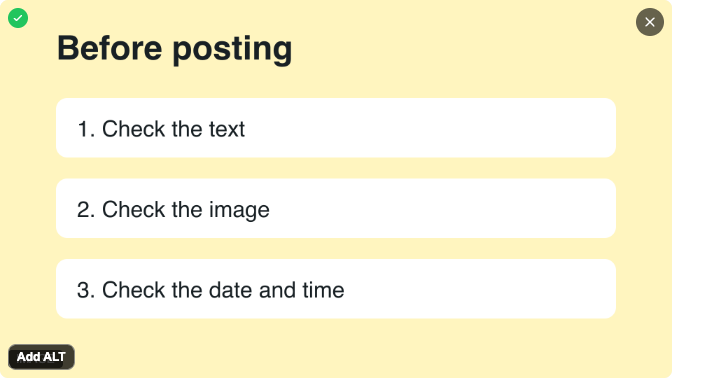
The example shows a completed upload. Attaching an image does not publish a post to X.
3. Compare the preview with the enlarged image
Select an image to enlarge it. With multiple images you can move to the previous or next one; on a computer, the left and right arrow keys also work. Use the close button or Escape to return.
Check both the content and how it fits in the preview.
- Preview: Are important words or subjects cut off at the edges? Can a reader tell what each image shows when several are attached?
- Enlarged image: Can you read the small text, prices, dates and notes? Is any private information still visible?
- Mobile: Is the main point readable at a small size? Put essential information in the post text too, or revise the image if it requires zooming to read.
Ritomira's preview helps you check your work. It does not guarantee identical cropping or placement on every device in X. Keep essential information away from the outer edges.
4. Add and save ALT for each image
ALT describes the information conveyed by an image. Enter it separately for each image; it is distinct from the post text. X's official image description guide explains how descriptions work on X.
- On an uploaded image, select Add ALT.
- In Image description (ALT), describe what a reader needs to understand without seeing the image. You can enter up to 1,000 characters.
- Select Save. Check that the editor closes and the image shows that ALT was added.
- Open the editor again to check the saved text. If you attached multiple images, add a description to each one.
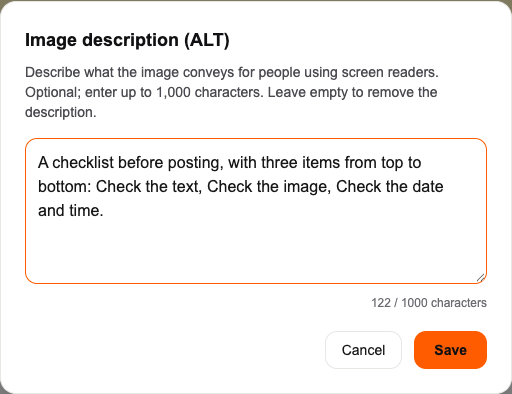
Example description:
A checklist before posting, with three items from top to bottom: Check the text, Check the image, Check the date and time.
Labels such as “image” or “promotional graphic” do not explain the content. Describe important text, order and differences in the context of the post. Do not add information that is absent from the image or insert search keywords to seek more engagement.
This description belongs to the example above; it is not a template to paste onto every image. For a chart, describe the metric, period and main pattern. For an interface screenshot, name the screen and the part the reader should notice.
To remove ALT, clear the field and save it. Canceling or closing the editor does not save your current changes.
5. Check again before saving or scheduling
- The destination X account, post text and attached images are the intended combination.
- Every image has finished uploading.
- The main point is understandable from the text too, and any ALT you need is saved for each image.
- If scheduling, the date and time are correct.
Saving a draft does not publish it. Scheduling a post makes it publish automatically at the specified time. See the X scheduling guide for the steps.
Saved image ALT is sent to X with the image during publication. After publishing, check the image and its ALT on X too. The screenshots explain the controls in Ritomira; they do not reproduce the display on X.
This guide does not claim that Ritomira can change images or descriptions on an already published post. ALT changes can also be restricted while a post is being sent. Prepare images and descriptions before scheduling or posting.
If something does not work
| Problem | What to check |
|---|---|
| You cannot select or attach the file | Check JPEG, PNG or WebP format, the 5MB limit per image, image count and dimensions. GIFs are not supported |
| Upload fails | Check your connection and the on-screen error, then retry. Try exporting the image again rather than just changing its extension |
| No ALT control | Wait for the image upload to finish. Read-only image pickers do not allow editing |
| ALT will not save | Check the 1,000-character limit and your editing permissions. The media may be locked while being sent. A failed save does not mean the description was stored |
| Text is cropped in the preview | Enlarge the image, then re-export it with the text farther from the edges. The display in X also varies by device |
Scope and sources
This guide covers static images attached to regular X posts through Ritomira. It does not cover video, cover or body images in X Articles, or other social networks. Adding images or ALT does not guarantee more engagement or higher search rankings.