
Run your X account from Claude: keep your rules in a project, then ask for reviews, drafts and scheduled posts
If you already use Claude every day, you can run your X account there too. Connect Ritomira, write your rules into a Claude project, and ask Claude to review last week's numbers and draft or schedule your next posts.
What you can do after reading
You can connect Ritomira to Claude and, in a project that holds your rules, ask for reviews of your X posts and for drafts and scheduled posts.
Scope & requirements · Features checked Nov 19, 2026
Requires Claude (desktop or web) and a Ritomira Standard plan or higher. Theme analysis requires Pro or higher. Ritomira currently supports X. Checked in Claude (web and desktop) on November 19, 2026. Claude's screen names and the conditions for using connectors and projects may differ by Claude plan or organization settings and may change. The conversation image is an illustration and its numbers are examples.
On this page
You write a post in Claude, paste it into X, schedule it in another tool, and check the numbers on yet another screen. If you use Claude every day, this back and forth is the part that takes the most time.
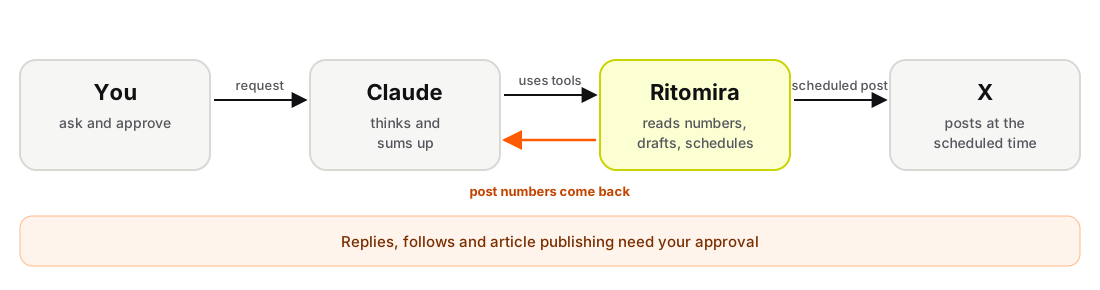
Once Ritomira is connected to Claude, you can read last week's numbers and create drafts and scheduled posts inside your conversation. The point is not just posting: you can look at the numbers before you write the next post.
One thing first: right after you connect, Claude can only read. It cannot create drafts or scheduled posts until you turn that on yourself. Actions that cannot be undone, such as replies and follows, always need your approval before they are sent, even after you turn them on.
The steps that are the same in every app are in Analyze your X posts and draft the next one from an AI app. This article focuses on how to keep using it in Claude.
Connect
No terminal or commands. You only enter one URL in Claude.
- In Claude, open Customize, then Connectors, and add a custom connector.
- Name it "Ritomira" and enter
https://mcp.ritomira.com/mcpas the URL. - Sign in to Ritomira in the browser, check the X account and the actions you allow, and approve.
If you use Claude through an organization, an administrator may need to allow custom connectors first (Claude Help). For what to check when it does not work, see Connecting MCP.
If you also want Claude to create drafts or scheduled posts, turn those on in Ritomira's settings (AI app integration permissions), then reconnect in Claude. Using it read-only for the first few days and turning things on later is a good way to start.
What it can and cannot do
| Action | Available? |
|---|---|
| Read post numbers (impressions, engagement, top posts, days and times) | Right after connecting |
| Group posts by theme and analyze them | Pro or higher |
| Create, edit and delete drafts | After you turn it on in Ritomira's settings |
| Create, change and cancel scheduled posts | After you turn it on in Ritomira's settings |
| Reply, follow or publish articles on X | After you turn it on, and only with your approval each time |
| Post to networks other than X | Not yet |
Write your rules into a project
Explaining "this account is for our shop, write politely" every time gets old. Create a Claude project and put your rules in its instructions. Every conversation in that project will start from them (Claude Help: Projects).
Fill in the brackets for your account and paste this into the instructions:
In this project, I run the X account [@account] with Ritomira.

- Audience: [e.g. people in their 30s and 40s who live nearby]
- Tone: [e.g. polite, no emoji]
- Never write: [e.g. promises of discounts, names of other shops]
- Posting times: [e.g. weekdays around 8am or noon]
- Drafts: [save drafts only / you may schedule posts]
- Before scheduling, always show me the text and the time and wait until I say "OK"
- When reading numbers, only read; do not create anything

For the weekly review: "Review last week's posts compared with the week before: impressions and engagement, the three most engaging posts and briefly why."
The lines about drafts and waiting for "OK" matter most. With them, you will not end up with a post scheduled by accident.
From the weekly review to the next drafts
In the project, say "do the usual review, please". Claude asks the way your instructions say, reads the numbers with Ritomira's tools (such as get_account_dashboard and get_top_performing_posts) and answers. If you also want days and times, add "and the days and times with the most engagement", and it checks with get_posting_time_analysis.
You can continue straight into ideas for the next post.
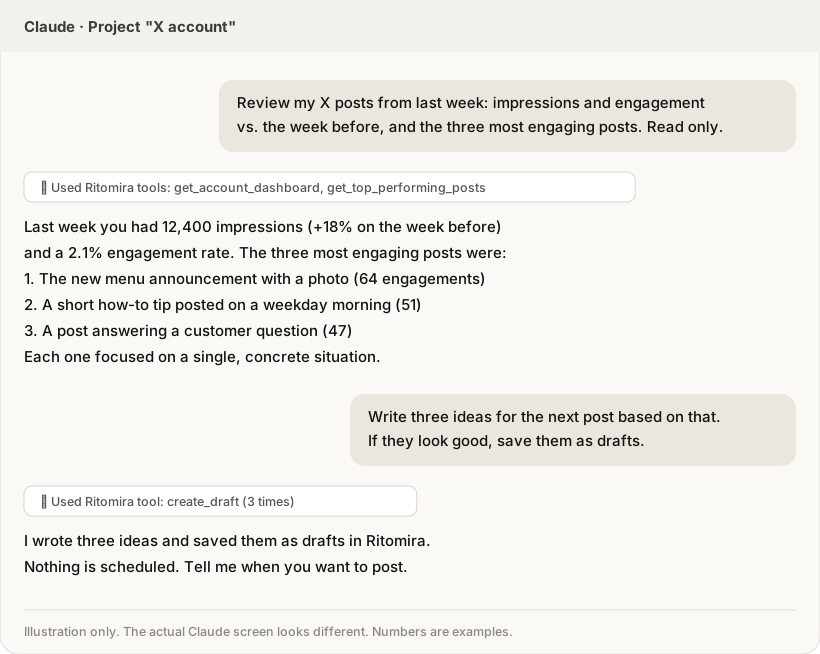
Asking the same way every week makes it easier to compare with the week before.
Claude may ask before it uses a tool. It is fine to allow tools that only read. For tools that create drafts or scheduled posts, read what Claude is about to do before you allow it. Creating a draft does not post anything to X.
Schedule posts
If scheduling is turned on, you can say "schedule the second idea for Thursday at 9:00". If your instructions say to wait for "OK", Claude shows you the text and time first.
A scheduled post is published to X automatically at that time. Before you say "OK", read the account, the text and the time once more. You can also check it in Ritomira's calendar, and change or cancel it by asking Claude or from Ritomira's screens.
Replies and follows need your approval
Replies and follows on X, and publishing articles, reach other people immediately and cannot be undone. So even if you ask Claude, Claude cannot send them alone. Before sending, a confirmation screen appears in the app, and the action is sent only when you approve it there. Apps that cannot show that screen cannot send these actions.
The "wait for OK" line in your instructions is a promise from Claude. This approval is built into Ritomira itself. Even if instructions aimed at Claude are hidden in someone else's comment, nothing is sent without you seeing it.
Questions
Do I need an API key? No. You sign in to Ritomira in the browser and approve when you connect.
Do I give Claude my X or Ritomira password? No. You sign in on Ritomira's own screen and never type it into Claude.
Which plans can use it? Ritomira Standard or higher. Theme analysis requires Pro or higher. Claude's own requirements depend on your Claude plan and organization settings.
I changed the permissions, but drafts or scheduled posts are not created. Reconnect in Claude after changing permissions. Until you do, the old permissions stay in effect.
Does it work with Instagram or Threads? Not yet. X only for now.
How do I disconnect? In Ritomira's settings, disconnect Claude from the list of connected AI apps. It stops working from its next request.
If something does not work
- Claude says a higher plan is required: check your plan, and reconnect in Claude after changing it.
- Claude talks about the wrong account: if several accounts are connected to Ritomira, name the one to use in the project instructions.
- Claude asks you to authenticate again: reconnect from Claude's connector settings and sign in to Ritomira.
What we checked
- On November 19, 2026, we checked connecting and the read, draft and schedule actions in Claude (web and desktop).
- The connection URL, permission levels, available tools and the plan each one needs match the MCP integration guide.
- The names and conditions for Claude's projects and connectors may change on Claude's side.
- For how the safeguards work, see Security and data handling.